Examples of summative and formative assessment supported by artificial intelligence tools and systems
8. Example: Curipod for formative assessment
Curipod is an AI tool that enables the creation of interactive quizzes, surveys, and assignments with instant feedback. It supports formative assessment and encourages active student participation during classes. Instructors use it to check understanding of the material, promote discussion, and monitor progress in real time.
Benefits for instructors:
- Allows rapid preparation of high-quality interactive assignments with minimal preparation time.
- Provides instant feedback to students, increasing engagement and motivation.
- Enables real-time progress monitoring and quick identification of areas needing additional support.
- Supports formative assessment and aids decision-making about the further course of instruction.
Although Curipod was originally developed for primary education, its simplicity and intuitive interface have led to increasing use in other educational settings. In higher education institutions, where MS PowerPoint is commonly used to create educational presentations, Curipod offers an easy transition to using AI tools in teaching.
Example of use:
The instructor logs into Curipod, selects the option to create a new activity, and enters questions related to the topic of sustainable development. They can upload their own educational content, such as a PowerPoint or PDF presentation, and turn it into an interactive lesson (Figure 1). They add questions or tasks (e.g., multiple choice, poll, open-ended question) to individual slides to encourage active participation (Figure 2). When the quiz is ready, they share a link or QR code with students, who connect via their devices (Figure 3). During the activity, Curipod displays answers in real time and automatically provides feedback on accuracy (Figure 4). Upon completion, the tool displays a summary of results and progress (Figure 5, Figure 6), allowing the instructor to see what content was understood and adapt the lesson to students' needs.
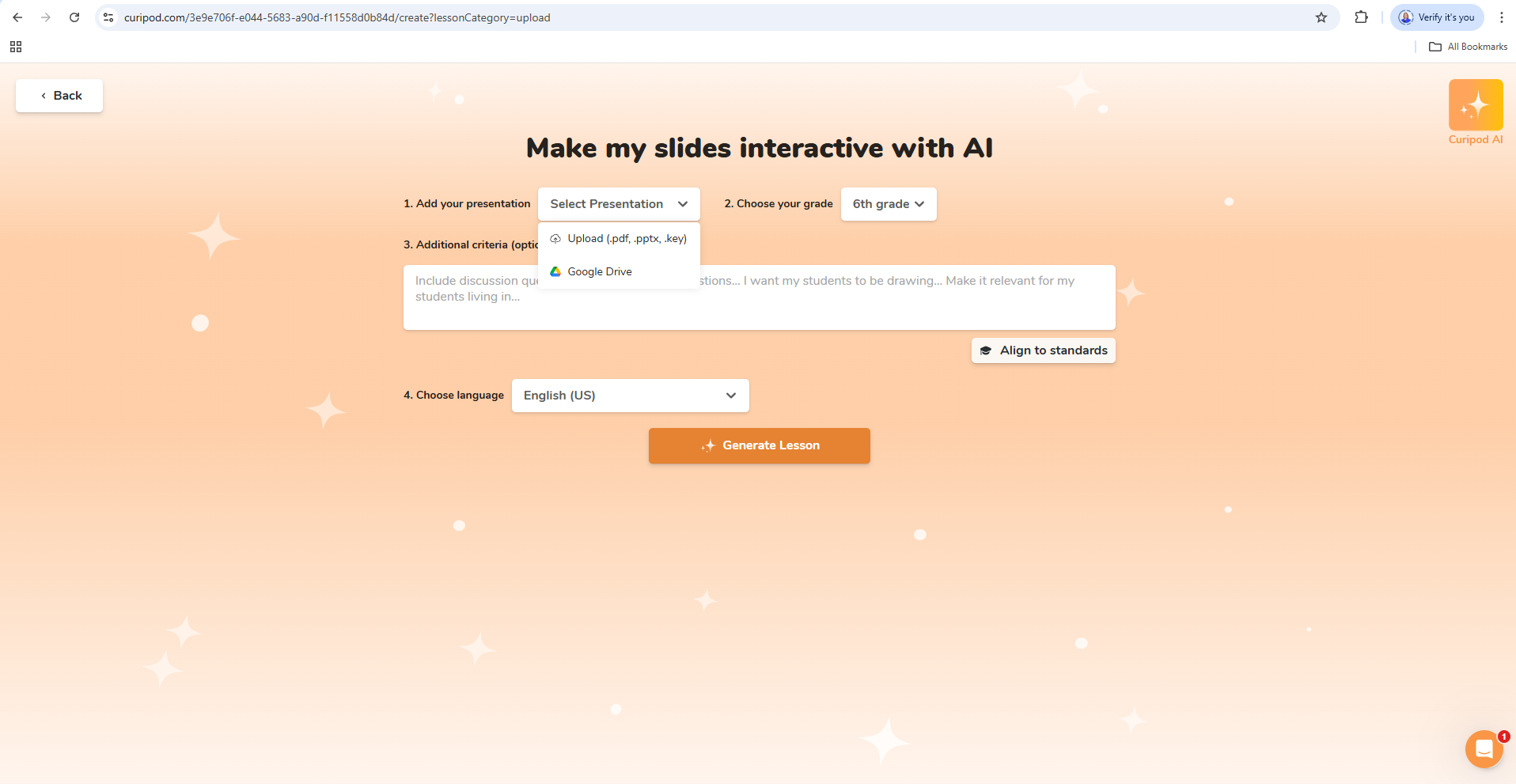
Figure 1. Curipod interface showing the option to create a new activity and upload your own educational content (PowerPoint or PDF)
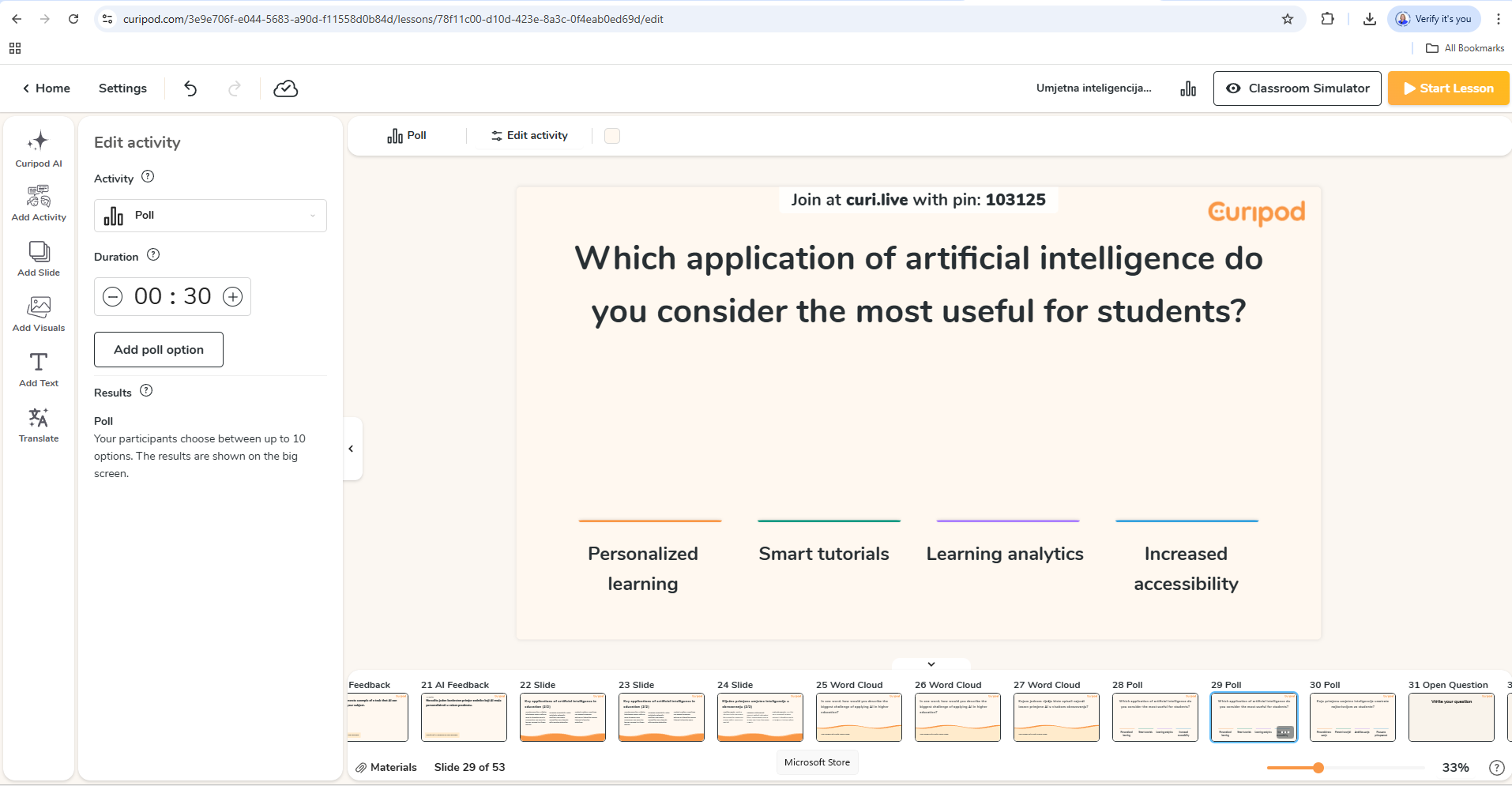
Figure 2. Adding interactive questions and tasks to individual lesson slides in Curipod
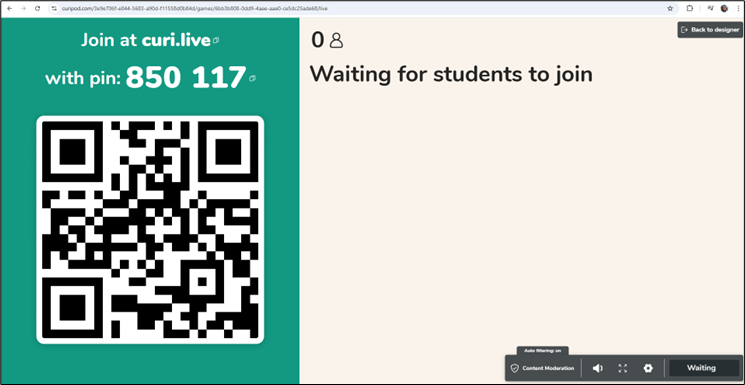
Figure 3. Generating a link and QR code for participants to access the activity via personal devices
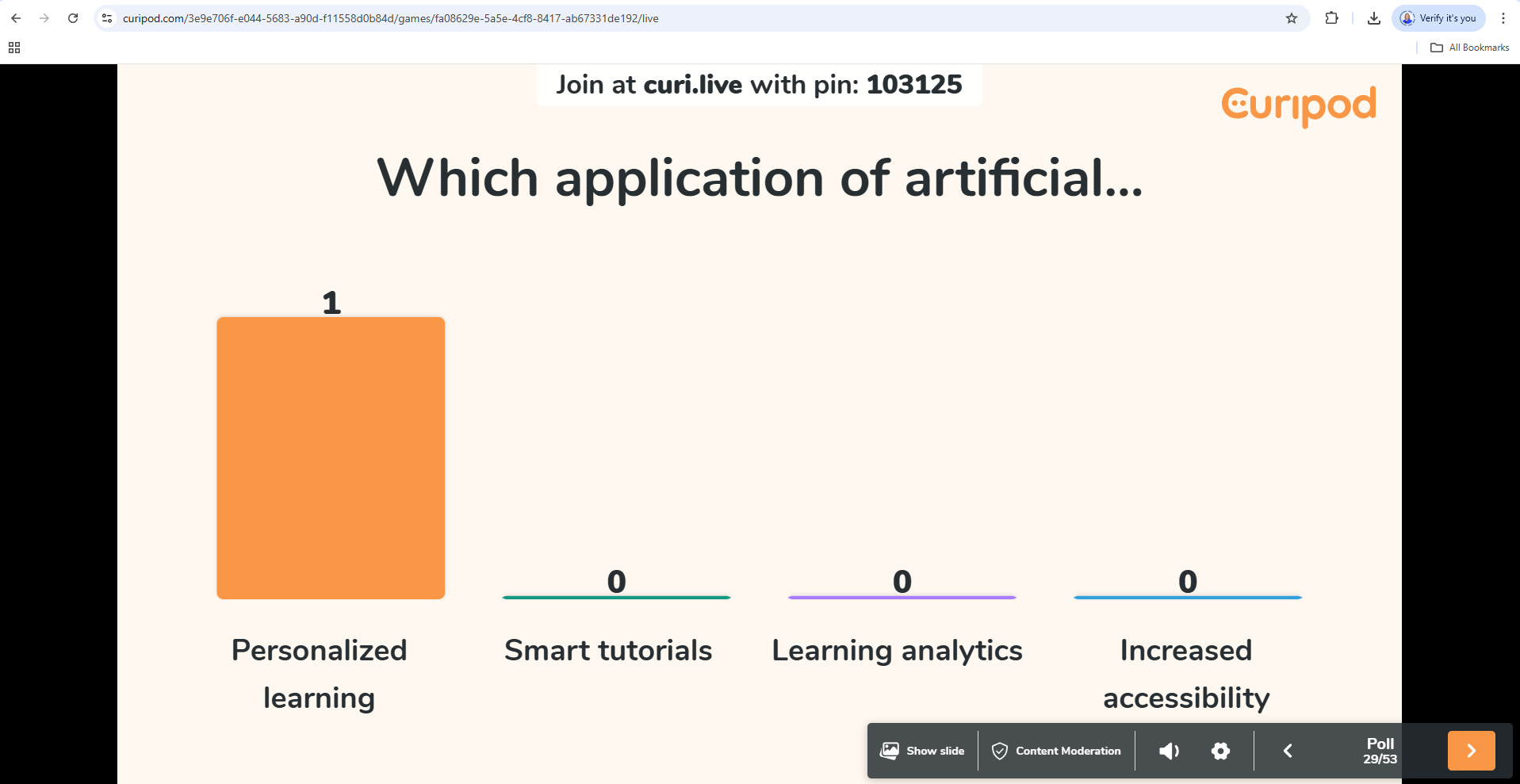
Figure 4. Real-time display of student responses and automatic feedback on response accuracy
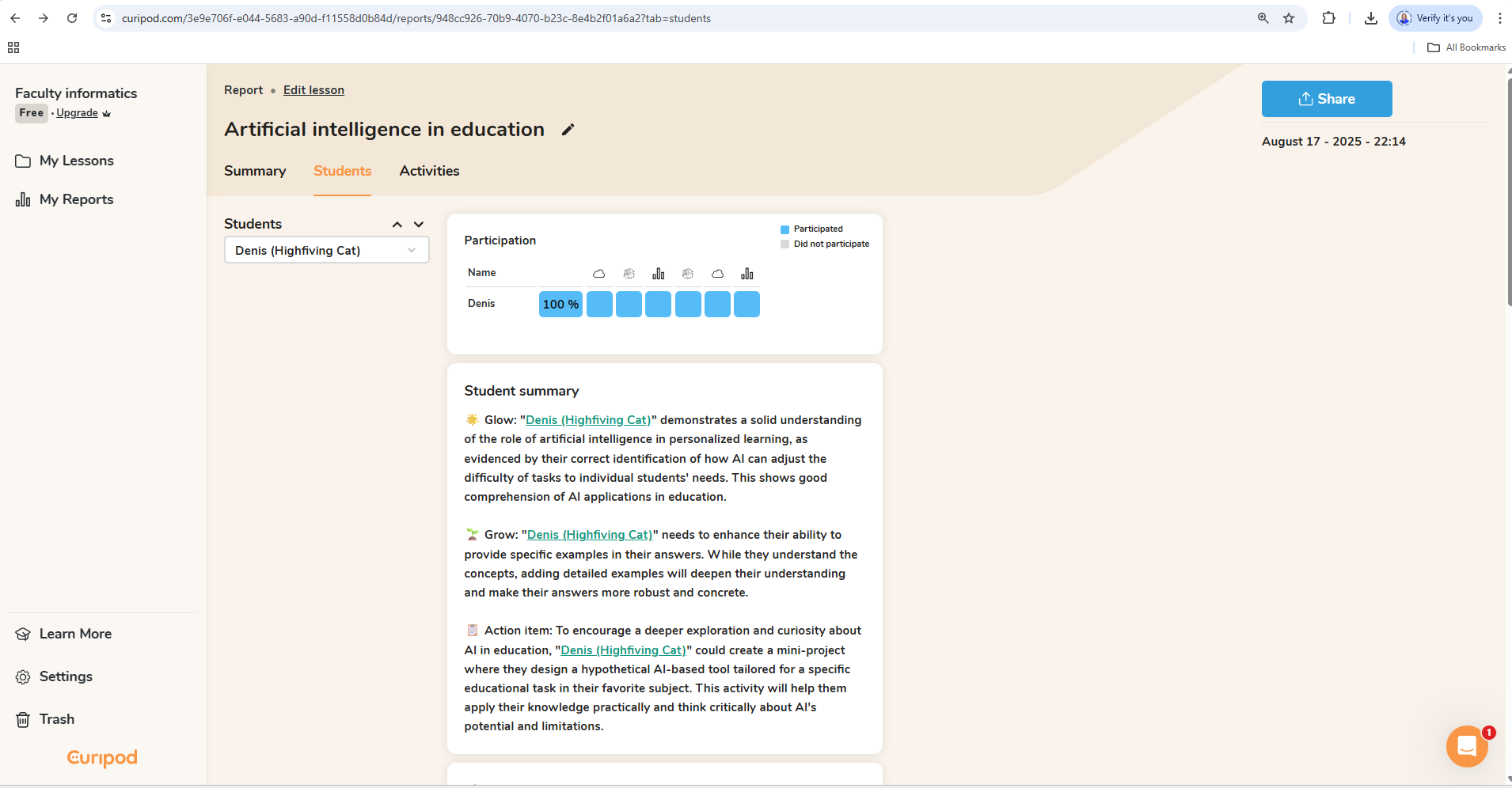
Figure 5. Summary of individual results and analytical presentation of participant progress after completing the activity
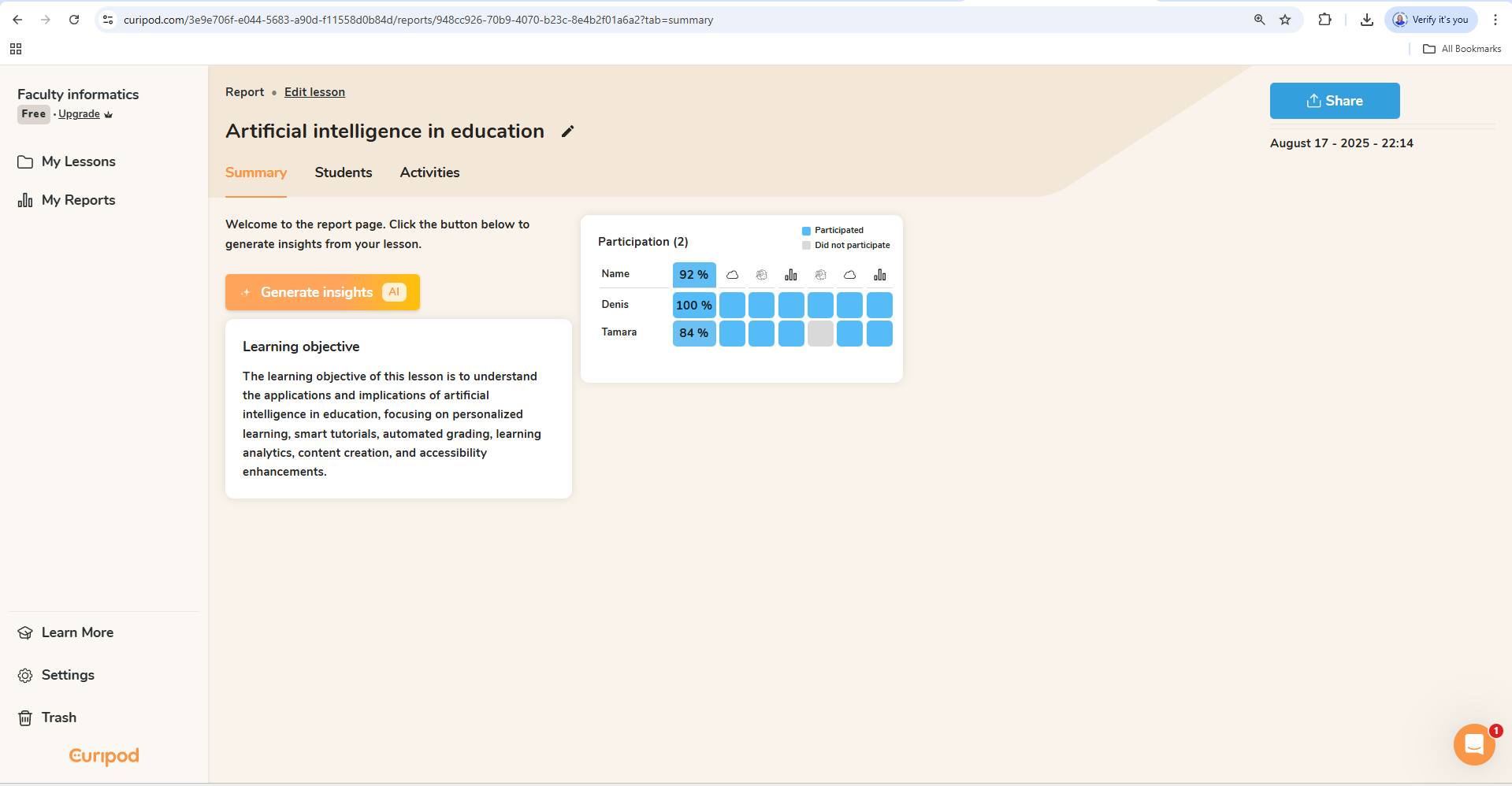
Figure 6. Summary of overall results and analytical presentation of participants' progress after completing the activity
Background Colour
Font Face
Font Size
Text Colour
Font Kerning
Image Visibility
Letter Spacing
Line Height
Link Highlight
Paragraph Width
Text Alignment