1. Flipped classroom
The flipped classroom is an approach to teaching in which the delivery of content is moved outside of the common classroom schedule, and the time allocated for live, in-classroom work is used for active learning, application of knowledge, and feedback.
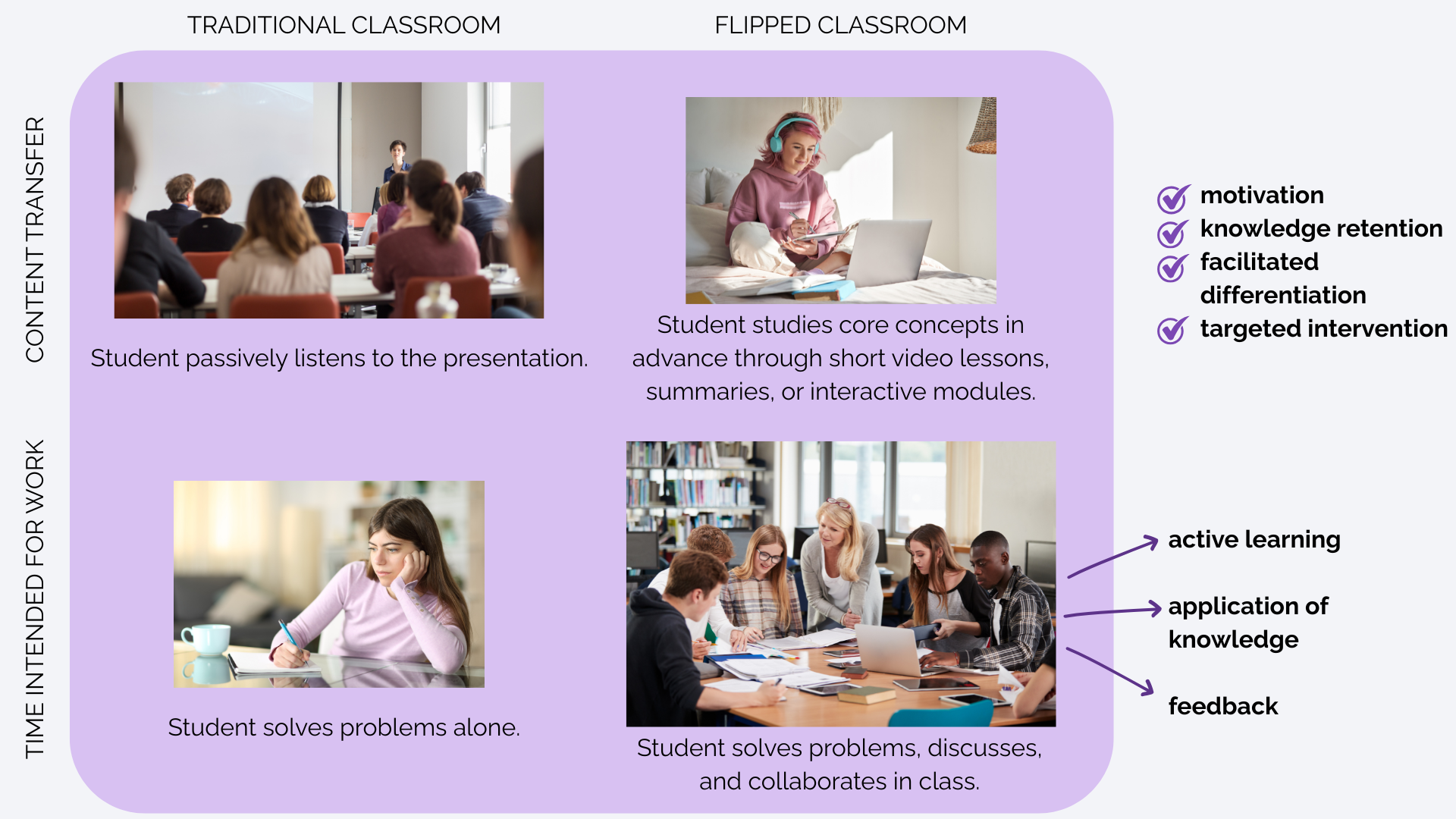
This arrangement emphasizes more cognitively demanding activities during the session, while basic familiarization with concepts occurs at a pace that the student can adjust (pause, rewind the video or audio recording, additional materials, and online resources). This increases motivation and retention of knowledge and facilitates differentiation, which allows the teacher to more quickly see where someone is "stuck" and facilitates targeted intervention.
The key is in careful design: clearly stating in advance the learning outcomes, success criteria, and what the student needs to do before the meeting (e.g., watch two videos up to 8 minutes long, solve 5 self-test questions, and write down one question/unclear concept for later discussion in class). In the learning management system, it is possible to set conditional availability of activities to ensure basic understanding before moving on to the next activity. The live teaching/work begins with a short recap, followed by small group work with defined roles and case studies, and ends with reflection on the process and insights.
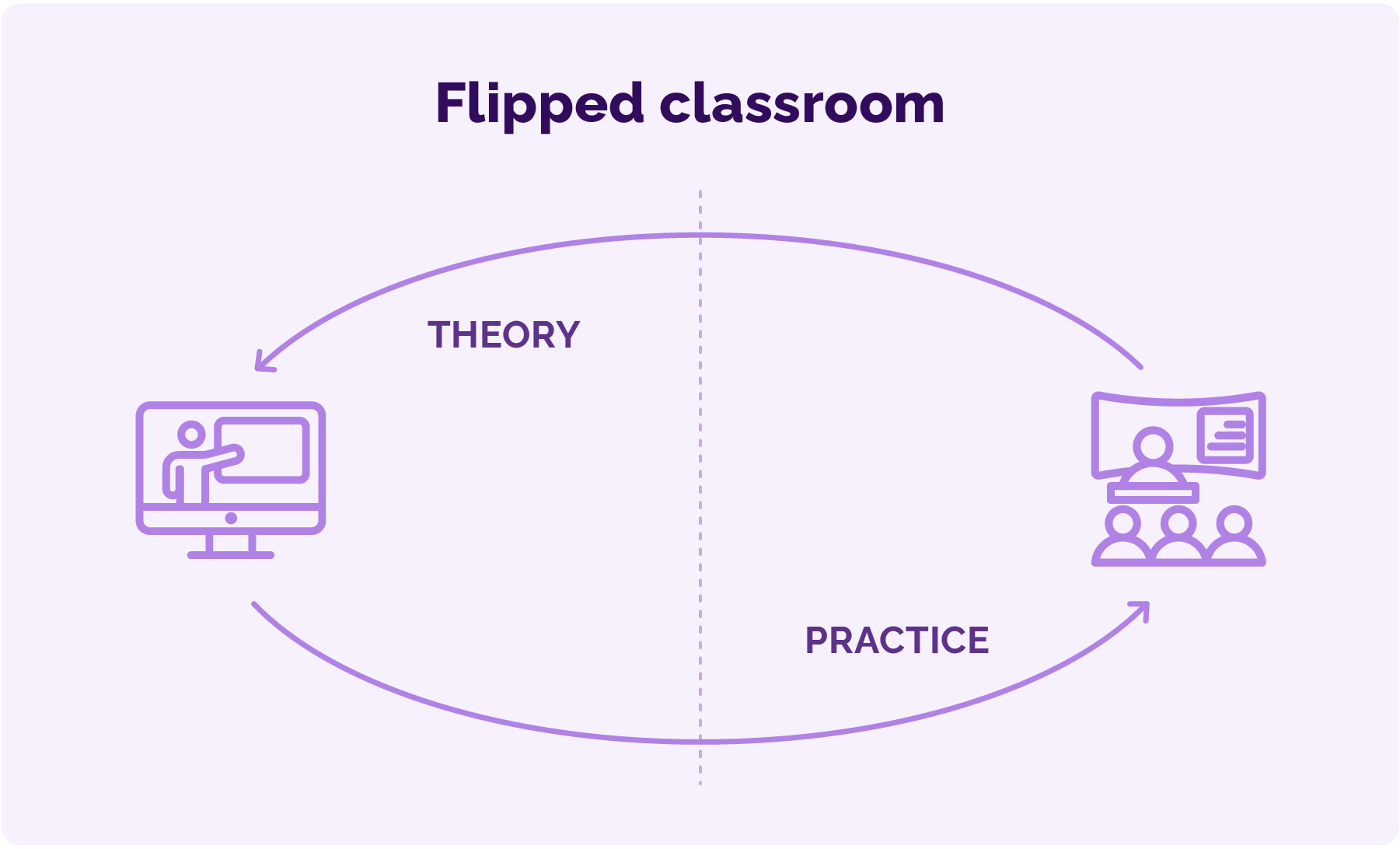
Potential pitfalls include materials that are too long and/or instructions that are unclear; these can be addressed by compressing the content or dividing it into smaller units (but not by breaking it up too much, as this can also be an additional burden on students), using application examples, and rotating roles so that each student can contribute. The flipped classroom is not “just a video”, as some critics like to say, but rather a reframing of time: what used to be a lecture becomes an interactive workshop, and preparation becomes meaningful because it leads to application and deeper understanding.
Examples of digital tools that can be used for a flipped classroom
Youtube
Description: YouTube is a global video publishing and sharing platform that makes it easy for teachers to distribute microlessons, demonstrations, and screenshots. You can edit metadata (title, description, tags), organize content into lists, and control visibility (public, private, "unlisted"). Accessibility features like automatic and manual captions and playback speed adjustment are built in, allowing students to learn at their own pace. Basic viewing analytics (retention, traffic sources) are available in YouTube Studio to help identify where students are getting stuck and what needs to be shortened or clarified. Content is easily inserted into an LMS, and “chapters” (sections) and video descriptions can serve as a quick navigation guide and a place for links to scripts, articles, or quizzes.
Application scenario: The teacher records three microlessons (6–8 minutes each) focused on a single microtopic. Each video is uploaded as unlisted and includes time-stamped chapters, along with a short description outlining “what to do before the meeting” (e.g., read the summary, solve five questions, note one point of ambiguity). The videos are then organized into weekly or thematic playlists, as needed, and embedded in an e-course within the LMS. At the beginning of each video, the teacher explains what students will know after watching it and reminds them how the content will be applied during class. The video description may also include links to the script, forms for entering notes or data, and a discussion forum for questions. After viewing the video, students can be required to complete a short test in the LMS as a prerequisite for accessing further activities. Prior to the live session, the teacher can review viewing analytics in YouTube Studio. For example, a noticeable drop in engagement in the third minute may indicate that particular content or concepts require special attention during instruction. During the live class, the teacher can invite students to identify the “biggest misconceptions” from the videos and then engage them in group problem-solving tasks that require applying the presented content. After the classroom session, the teacher can upload a follow-up video summarizing key points and addressing frequently asked questions, as well as update video descriptions with additional references. In this way, the instructional design closes the loop between preparation, application, and post-lesson reflection.
Edpuzzle
Description: Edpuzzle transforms static video into interactive video by adding multiple-choice questions, open-ended questions, and annotations (including voice notes). Teachers can import their own footage or link to an existing YouTube video, trim segments, insert comprehension checks, and enable settings like “prevent skipping” to ensure the entire video is watched. The tool allows for progress tracking: you can see who watched, for how long, and how they responded, and the results can be synced to the LMS via LTI integration, automatically recording grades and completion in the e-course. Edpuzzle also offers a library of pre-made lessons and professional training for teachers, allowing you to get started quickly without extensive technical knowledge. The key value in flipped learning is “moving” basic content processing outside of the classroom while simultaneously collecting comprehension data, freeing up time during class for discussion and problem-solving at higher cognitive levels. Additionally, the ability to add feedback to incorrect answers helps students learn from mistakes immediately, and analytics on the answers provided make it easier to identify conceptual barriers for the entire group.
Application scenario: The teacher selects an existing YouTube video, shortens it to 7 minutes, and embeds 4 to 6 questions at key points: an introductory question to activate prior knowledge, two comprehension questions, and one question to apply what has been learned. He can also include an anti-skipping option and set a “completion deadline” the day before the classroom lesson. He adds the activity to the Moodle LMS through an LTI link and then maps the results/grades to the internal list of that e-course. In the text of the assignment, he asks students to submit at least one question that arose during the viewing before the lesson. At the beginning of the lesson, in a report available within Edpuzzle, the teacher can review the aggregated incorrect answers and display two “critical points” of misunderstanding (answers where students make mistakes in the majority of cases). He can then assign groups of students to solve a short, similar task with a slightly different context, using these points. After the group work, a discussion can follow where each group explains its procedure or reflections. At the end, the teacher unlocks an additional short test in the Moodle LMS for individual verification of understanding of what has been learned. After the lesson, the teacher can analyze detailed reports for each question and, according to the results, reorganize the video and the questions contained in it for the next lesson cycle.
Moodle LMS
Description: Moodle is one of the most widely used open source learning management systems (LMS) in Croatia and around the world. It enables the construction of a complete solution for the flipped classroom: pages with teaching materials, assignments for submitting student work, discussion and planning forums, tests for evaluation and self-assessment, conditional availability of activities for gradual student progress during activities and teaching materials (sometimes depending on the results of the evaluation), student grouping, grading using rubrics, and the like. Moodle is widely used in the Croatian higher education system and supports various pedagogical models, including hybrid learning, PjBL, and the flipped classroom. In addition, there is a mobile application for viewing content and notifications, which increases the accessibility and continuity of learning for students outside the VU building. Detailed activity reports and records allow teachers to identify patterns of student engagement and adjust materials and prerequisites so that all students have a clear path through the content.
Application scenario: A teacher creates a unit in an e-course on the Moodle LMS called Week 4: Derivations in Practice. After the title Preparing before the meeting, there can be a page with links to three short videos and a checklist with clear steps (the page is a standard activity; the checklist must be installed and enabled by the system administrator). The teacher can then activate access restrictions so that the Group Assignment activity appears only when a specific student achieves at least 70% of the points on Test 1 (which contains 5 questions) and select the Viewed option on the links to the videos on the e-course cover page. The teacher can open a Forum activity called Your Questions, in which students must post at least one question or a short description of unclear concepts by the time of the classroom lesson. In class, the teacher can use the test results and the questions and ambiguities from the aforementioned forum as starting points for student work in groups. After a class period in Moodle LMS, the teacher can unlock the H5P interactive video activity with a key and additional review questions called Summary after class, and in the homework activity called What We Learned, he/she can collect student reflections on what was most difficult and how they (successfully) mastered it.
H5P Interactive content
Description: H5P is a framework for creating interactive HTML5 content that can be integrated into a number of content management systems (CMS) and learning management systems (LMS). It offers a wide range of activity types (over 40 of them), including: Interactive video (video with pauses and questions), Presentation, Question set, Timeline, Dialog cards, Interactive book, Download and layouts, all with responsive display, reusability, and the possibility of using Creative Commons licenses. For teachers who want to use H5P for the flipped classroom, it is important that “passive” video viewing is transformed into active knowledge acquisition during short checks, exactly where students make the most mistakes. H5P is available as a plug-in for Moodle, and there is also a commercial service, H5P.com. A large community of teachers and instructional designers around the world share templates for creating teaching materials, so high-quality content can be quickly adapted to the needs of the course. Thanks to its openness and transparency, H5P helps standardize microactivities and make them available to a larger number of e-courses and teacher teams.
Application scenario: A teacher can create H5P content of the type Interactive Video from an existing video on their computer or from YouTube. At 1:10 of the recording, they can insert an activation question (e.g., What do we already know about XY?), at 3:45, they can then insert a True/False question about a key concept, at 5:20, a multiple-choice question that contains feedback with explanations for incorrect answers, and at 7:00, an assessment type called Summary (usually 3 statements with which students confirm what they have learned). In the settings, they can enable Require all correct answers to continue for individual segments and then the Try again option, so that students have the right to another attempt. The activity can then be added to the Moodle LMS and set as a prerequisite for accessing the Apply in a New Context task in classroom teaching. After students watch the video and answer the questions, the teacher can see the aggregated weaknesses through the assessment report (e.g., question 3 has 42% accuracy) and can pay more attention to it accordingly during the class period. The class begins with a short discussion on the question/topic, followed by a group mini-project that requires the application of the same concept to different data. After the class period, the H5P unlocks the content of the type Set of questions for consolidation of learning and reflection task in the classroom. With some modifications in the described procedure, the listed H5P interactive content can be applied in other LMS (Canvas, Blackboard) or CMS systems (WordPress, Joomla), but when applied in CMS systems, there is a challenge that it is not possible to track the aggregated results of student work (as well as individual progress) as is possible in LMS systems.
Background Colour
Font Face
Font Size
Text Colour
Font Kerning
Image Visibility
Letter Spacing
Line Height
Link Highlight
Paragraph Width
Text Alignment